This is the public guide for Broker Requests. It mirrors the
in-app help. If something is not working, contact
support and we will do our best to get back to you quickly.
Broker Requests is a firm-wide board for the "what are you looking for?" conversation. You post something you Need (a boat you are hunting for a client, a slip, transportation, an apartment) or something you Have to offer, the network is notified, and any broker can browse the board, open a request, and start a conversation on it. It uses the same sign-in as the rest of Yacht Broker Support, so if you are already signed in to Vendor Management you are signed in here too. This guide covers posting a request, browsing and filtering the board, the discussion thread on each request, the notification choices you control, the request lifecycle, printing, and the admin notes.
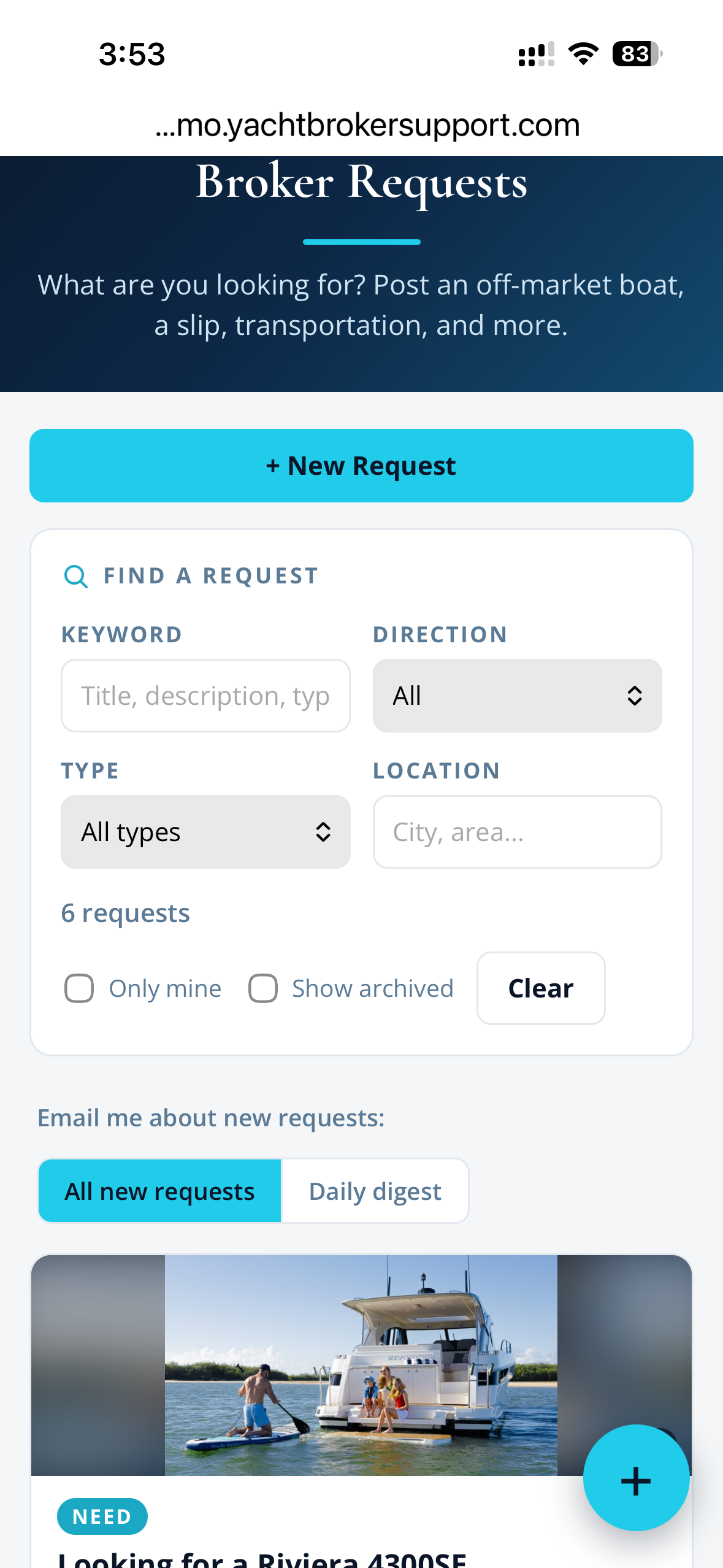
the Broker Requests board: the search bar, the notification strip, and the request cards
What Broker Requests is
Broker Requests is a private, staff-only board for your broker network. It is not public and it is not on the open web. Only signed-in brokers can see it, opened from the Broker Requests card on the launcher menu.
Everything on the board is one of two things:
A Need - something you are looking for. An off-market boat for a client, a slip, a delivery captain, transportation, even an apartment.
A Have - something you can offer to the network.
Every broker can post their own requests, browse everyone else's, and reach out on any of them. Whether the card shows for the whole team or reads "coming soon" is a provider setting your administrator controls.
Creating a request
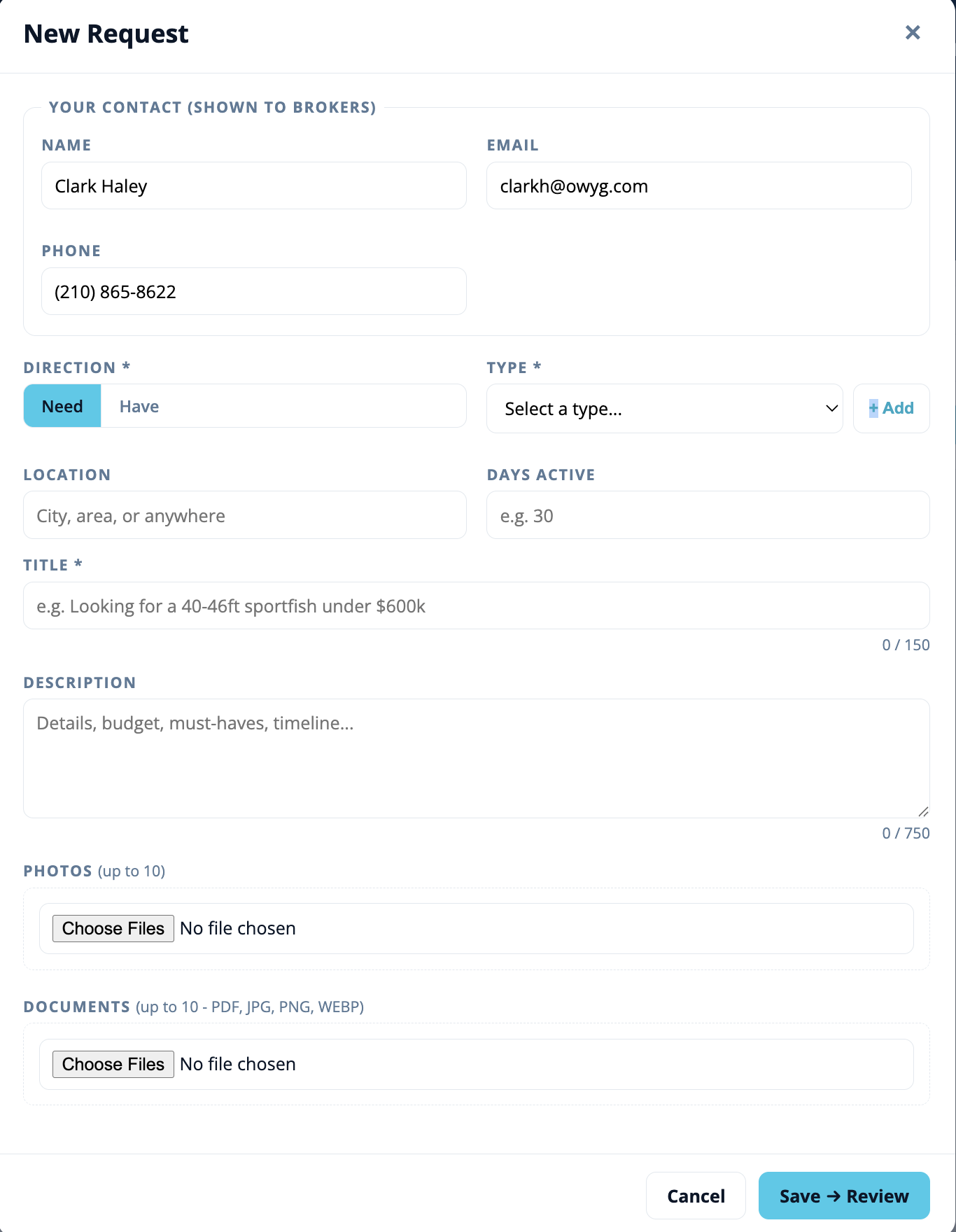
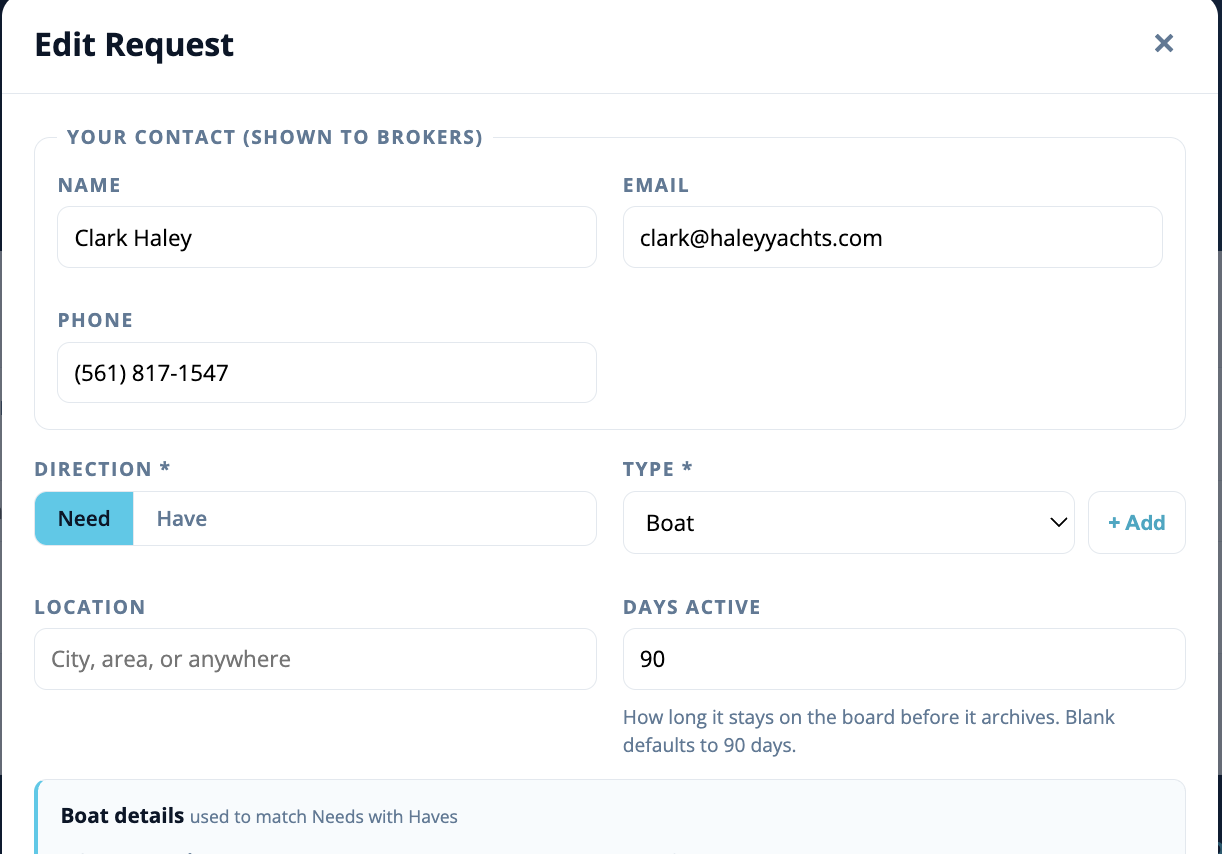
Click + New Request at the top of the board. A form opens. Your contact details - name, email, and phone - are filled in automatically from your profile, so brokers know how to reach you. Edit them on the form if you want a different contact shown on this particular request; what you enter is snapshotted onto the request when you post it.
the New Request form with your auto-filled contact block at the top
The fields
Direction - choose Need or Have. This sets the badge on your card.
Type - pick from the list (Boat, Slip, Transportation, Apartment, and so on). The list is short on purpose and only an administrator can add to it. That matters more here than anywhere else in the app: type is what the matching runs on, so a one-off type nobody else uses creates a category nothing will ever match, and your request goes quiet without ever telling you why. If you genuinely need a new one, ask an administrator.
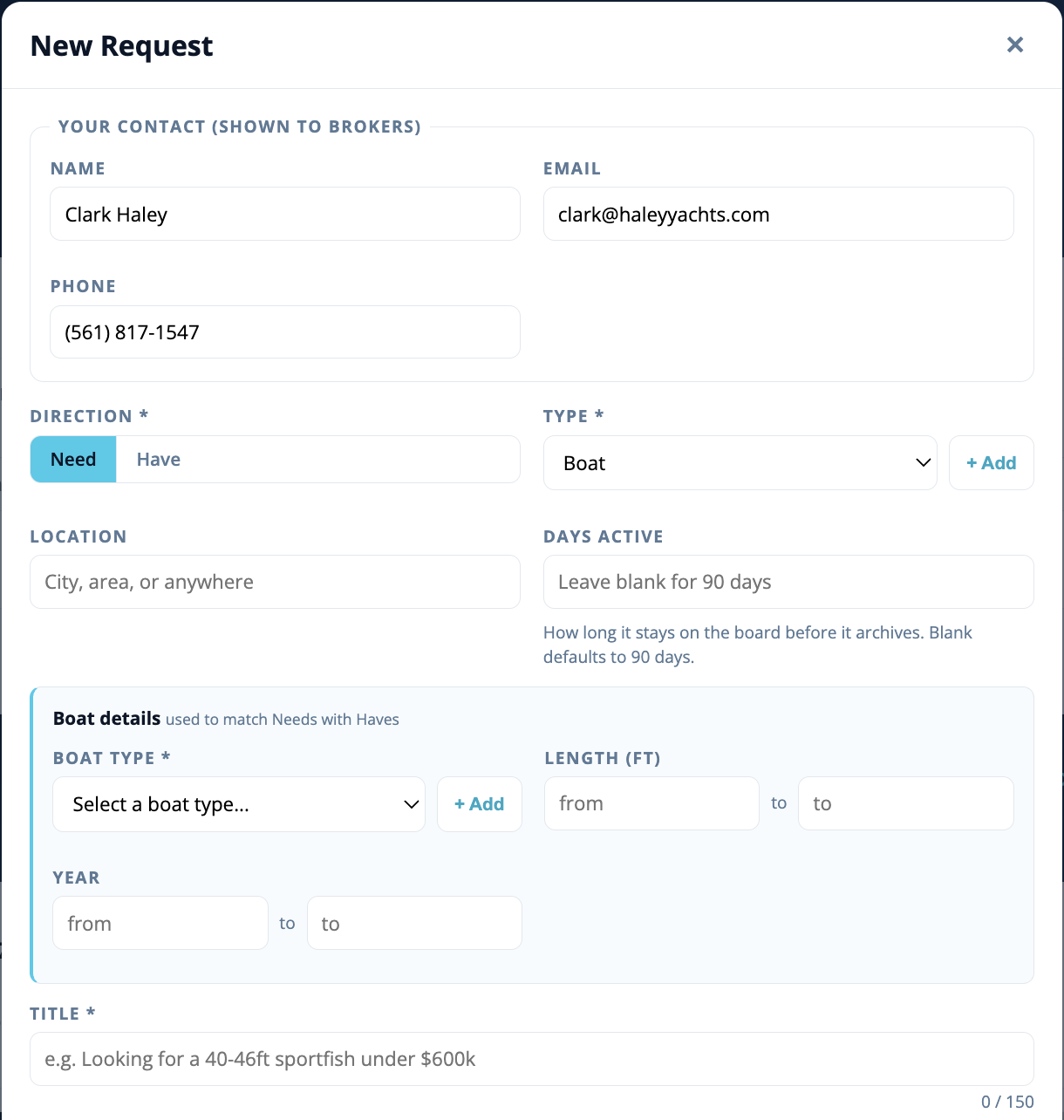
Boat details (Boat and Yacht only) - choosing a Type of Boat or Yacht opens a small box for Boat Type, a Length range (from / to, in feet), and a Year range. Boat Type works like the vendor type search: click it and start typing, and the list narrows as you type - "sport" gets you to Sportfish without scrolling. It is a controlled list, so an administrator adds to it rather than each broker. These fields drive the matching described below, and they are also written into the Description automatically so they show and search there.
Location - a searchable free-text field. City, area, or "anywhere." Optional, but it makes your request far easier to find.
Days Active - how long the request should stay on the active board before it archives on its own. Leave it blank and it defaults to 90 days.
Title - a short headline, up to 150 characters, for example "Looking for a 40-46ft sportfish under $600k." A live counter shows how much room is left.
URL - an optional link to a listing, spec sheet, or photos. It shows as a clickable link on the posted request.
Description - the details, up to 750 characters: budget, must-haves, timeline, condition. Optional but recommended.
Photos - up to 10 images (JPG, PNG, or WEBP). The first photo becomes the card's hero image.
Documents - up to 10 attachments (PDF, JPG, PNG, or WEBP) - a spec sheet, a listing PDF, whatever helps.
the boat details box: boat type, length range, and year range, opened by choosing a Type of Boat or Yachtthe optional link field, for a listing, spec sheet, or photosdays active, which defaults to 90 days when left blank
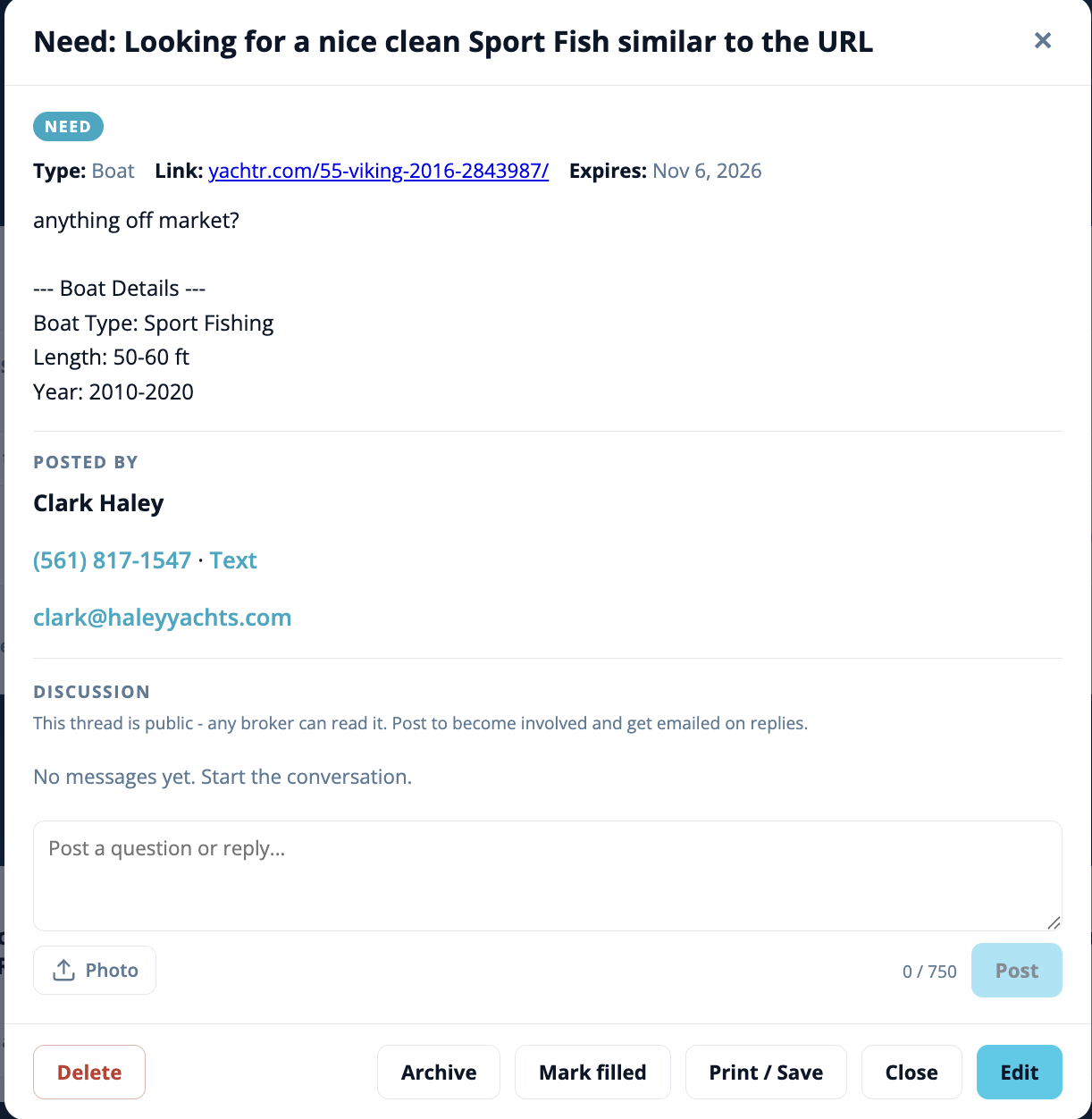
Your contact comes from your profile. The Name, Email, and Phone at the top of the form are pulled from your account profile. If any are blank there, fill them in on your profile (from the account menu, My Profile) so brokers can reach you. On the posted request, the phone shows as click-to-call and click-to-text, and the email as click-to-email, so anyone can reach you in one tap.
Reviewing and committing
When the form is filled in, click Save → Review. Nothing is stored yet. A Review screen shows exactly how the request will read - the same layout other brokers will see. Use ← Edit to go back and fix anything.
If you attached photos or documents, Save → Review is when they go up, and a horizontal progress bar shows you how far along they are. When the bar reaches the end it switches to "Processing" while the server finishes with them - that part is normally quick. Photos are shrunk on your phone before they are sent, so a boat picture taken on a bad marina signal still goes up in seconds rather than minutes.
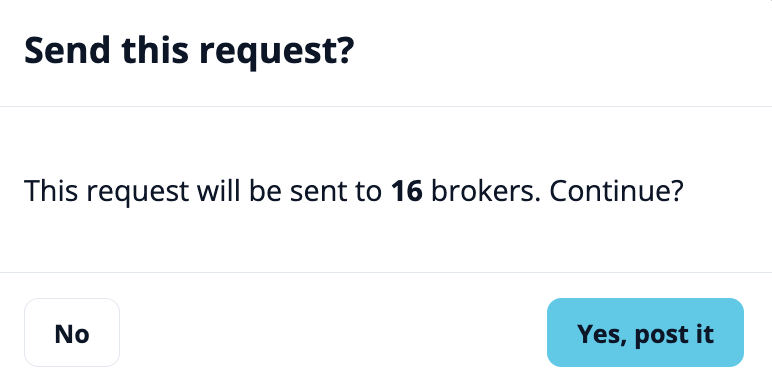
When it looks right, click Commit. A short confirmation asks:
"This request will be sent to X brokers. Continue?" - X is the number of active brokers who will hear about it. Choose Yes, post it to publish and notify the network, or No to go back.
On Yes, the request goes live, the network is notified according to each broker's own preference, and you are offered a Print / Save a copy button so you can keep a clean copy on hand. Nothing is stored until you commit.
the "This request will be sent to X brokers. Continue?" confirmation
Browsing and filtering
The board works like Vendor Management. Requests show newest first as cards, and a search bar at the top narrows them:
Keyword - matches the title, description, and type.
Direction - All, Need, or Have.
Type - filter to one type.
Location - search by city or area.
Only mine - a checkbox to show just the requests you posted.
Show archived - a checkbox to switch from the active board to archived and filled requests. Clear resets every filter.
Each card shows the request's first photo (or a Need/Have placeholder when there is no image), the Need/Have badge, any Filled tag, the poster's avatar (their headshot, or their initials), and small counts for how many photos and documents are attached. An unread badge appears when there is new thread activity you have not seen. Click any card to open the full request.
Messaging on a request
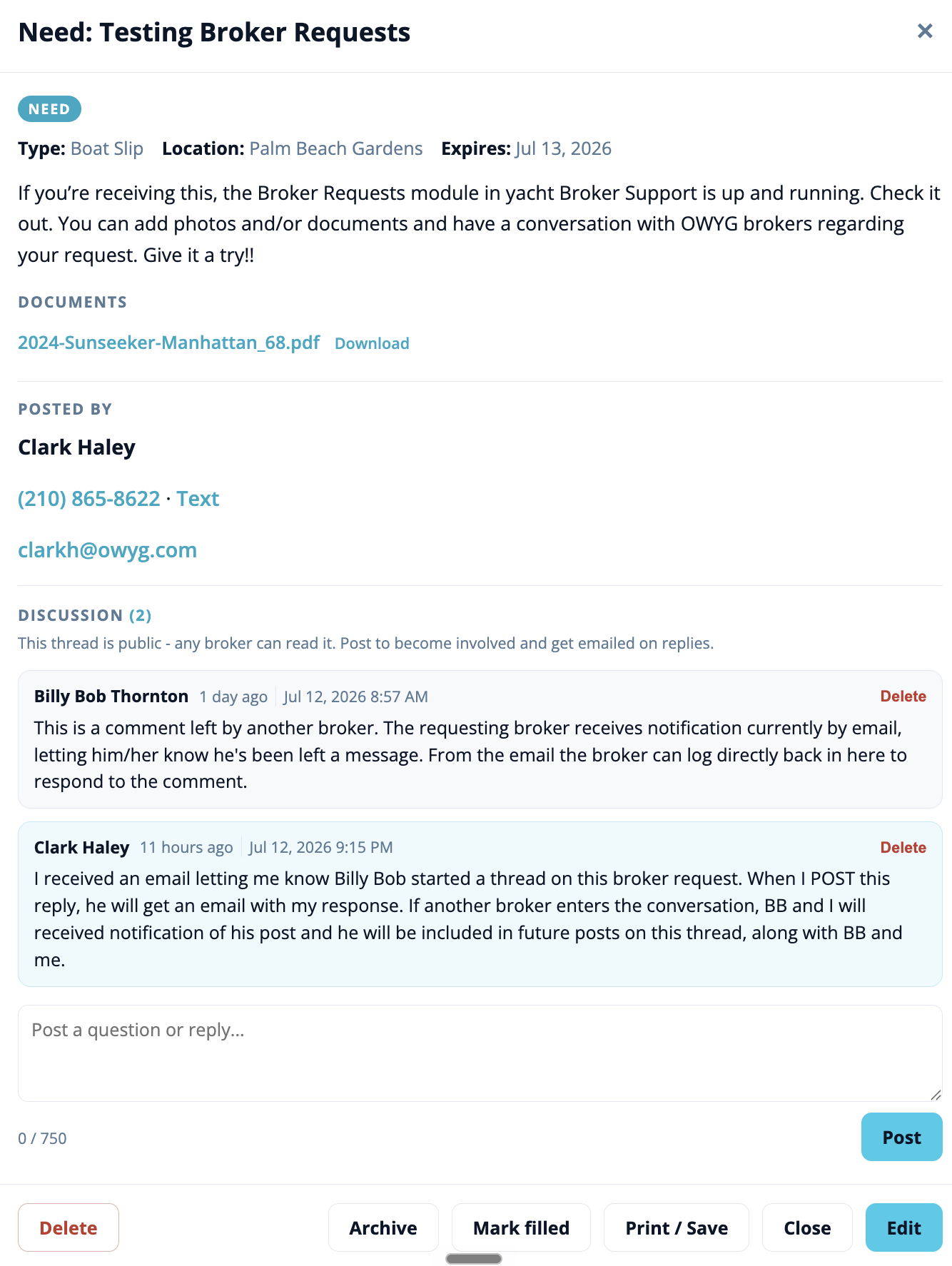
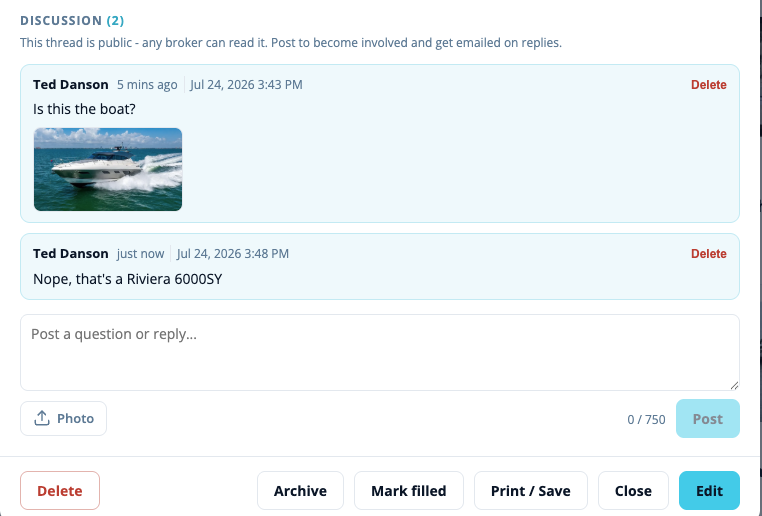
Every request has one discussion thread, right on its detail view. The thread is public within the network - any broker who opens the request can read it. To join in, type a message in the box and post it. That is all it takes to become part of the conversation.
Anyone can read; posting makes you a participant. Simply opening and reading a request does not sign you up for anything. Posting a message does.
Everyone involved is emailed on new messages. When a message is posted, the requester and everyone who has posted on that thread get an email. The wider board is not notified - only the people already in the conversation.
Posting is immediate. Your message appears as soon as you press Post. The emails to the other brokers are sent afterwards, in the background, so you are never left waiting on the mail to go out before you can carry on. If your comment has a photo on it, you get the same progress bar while the picture uploads.
Unread badges flag new activity on the board so you can see at a glance which threads have moved. Opening a request clears its unread count for you.
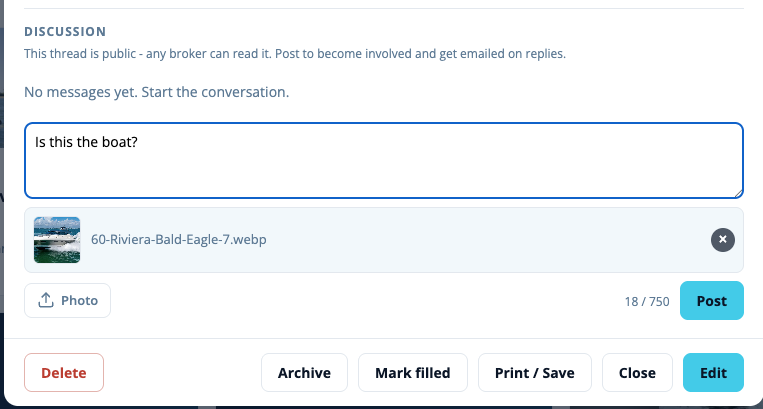
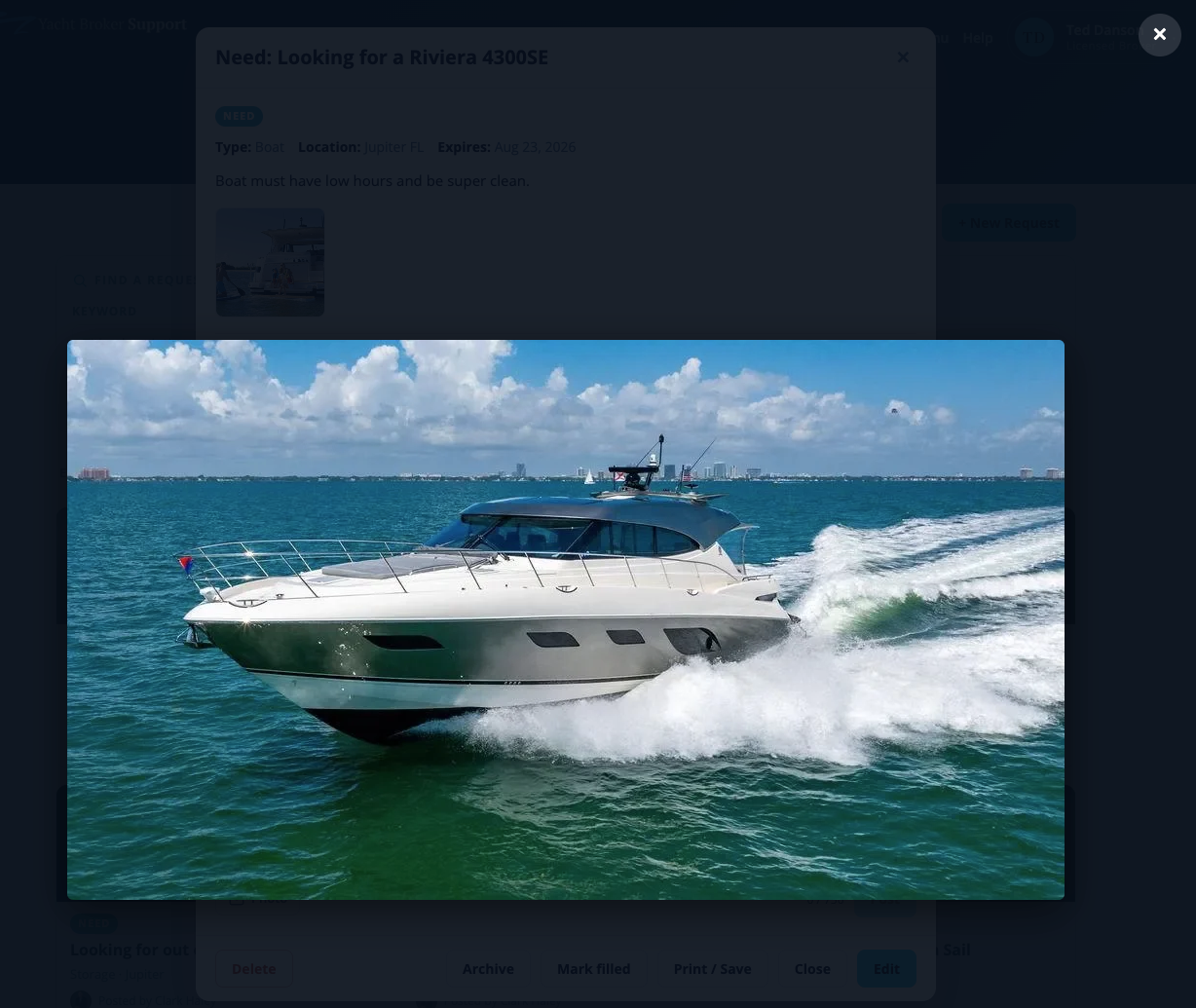
Attach a photo. Tap Photo below the comment box to add one image to your comment - handy for a boat picture, a document snapshot, or a detail someone asked about. A comment can be a photo on its own, text on its own, or both. The photo appears as a thumbnail in the comment; tap it to see it full size right here in the app, then tap anywhere to close. When you comment with a photo, the involved brokers' email tells them a photo was added and links back to the thread to view it.
Each post shows the poster's name and a date and time. You can delete your own messages (an administrator can delete any); deleting a comment also removes any photo on it.
a request detail: the photos, contact links, and the public discussion thread with its compose boxattaching a photo to a comment: the Photo button and the preview of the chosen image before you posta posted comment with its photo as a thumbnail - tap the thumbnail to view it full sizetapping a thumbnail opens the photo full size right in the app; tap anywhere to close
Notifications you control
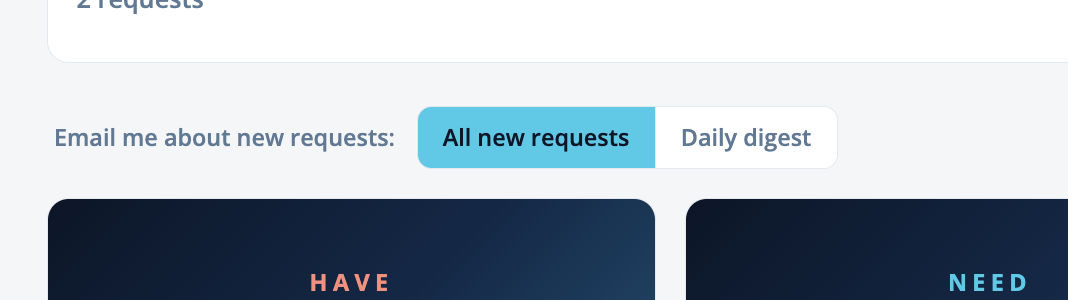
At the top of the board is a notification strip where you choose how you hear about new requests:
All new requests - an email each time any broker posts a new request.
Daily digest - one roll-up email a day listing that day's new requests.
Your choice is saved the moment you pick it and applies only to new-request announcements. It does not affect two things that always reach you immediately:
Thread messages on a request you are involved in.
Match alerts when your request lines up with someone else's (see the next section).
the notification strip: All new requests vs Daily digest
How matching works
Matching is automatic and quietly connects a Need with a Have going the other way. It only ever emails the brokers a possible match, for you to judge - there is no auto-anything and nothing new to watch on screen.
Boat and Yacht requests match on the boat details: the same Boat Type, with overlapping Length and Year ranges. A blank end on a range counts as open, so a specific boat matches any range that spans it. This is a real, useful match, not just "you both said Boat."
Every other Type matches when the Type is the same and the direction is opposite (a Need meets a Have).
When something matches, the brokers involved get a heads-up email with a link straight to the request. You always decide whether it is actually a fit.
The life of a request
A request stays active on the board for the number of Days Active you set. Along the way:
Expiry reminder - before a dated request expires, the app emails you, its owner, so you can renew it, mark it filled, or let it go.
Auto-archive - once the days run out, the request archives on its own and drops off the active board. Nothing is lost; it moves under Show archived.
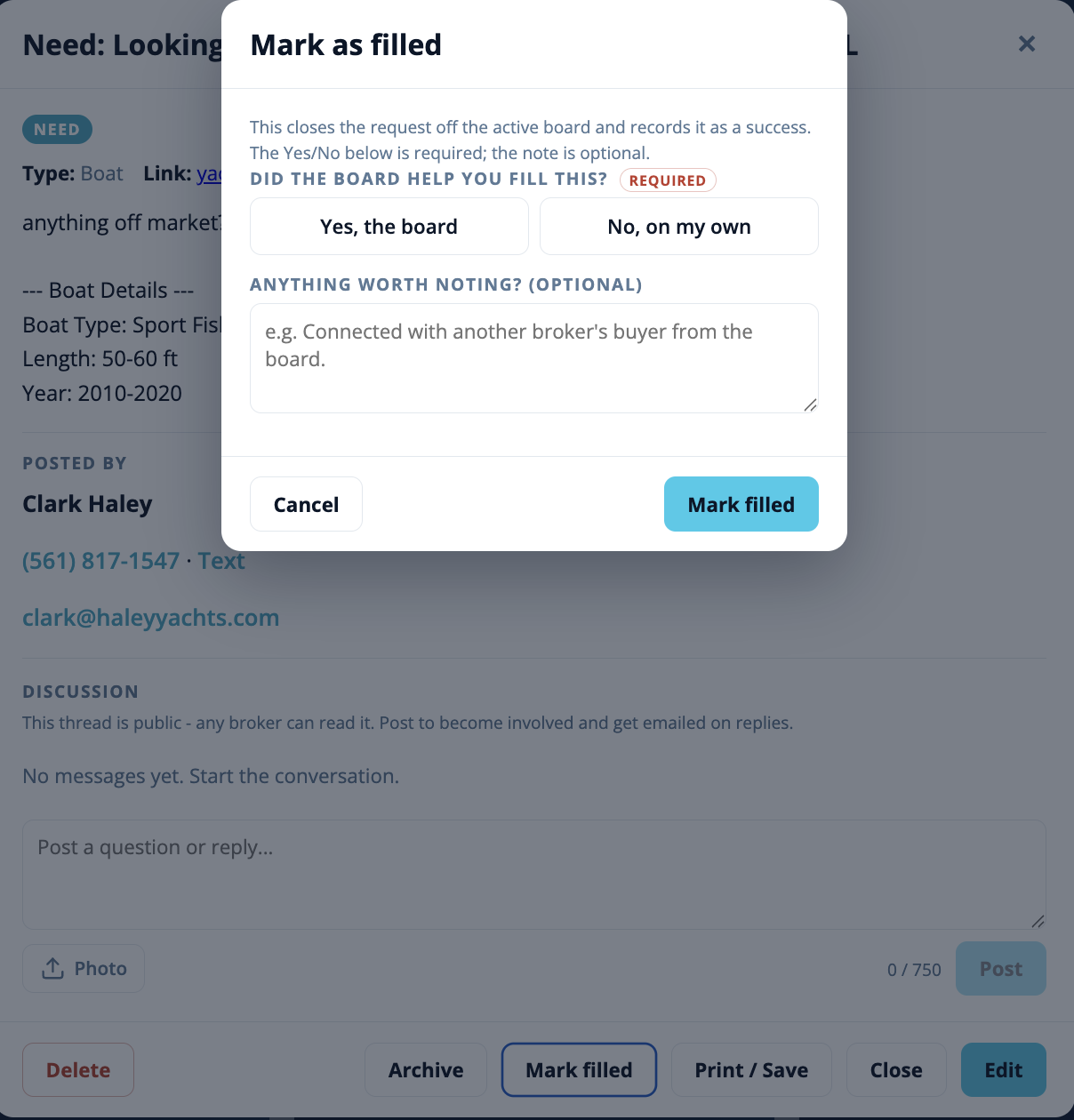
Mark filled - found what you needed early? Open the request and choose Mark filled to close it off the active board right away. It gets a Filled tag.
Reinstate - you (or an administrator) can reinstate an archived or filled request. It runs again for its original length, and you choose whether to announce it to the network again or bring it back silently.
Delete - the owner or an administrator can delete a request outright.
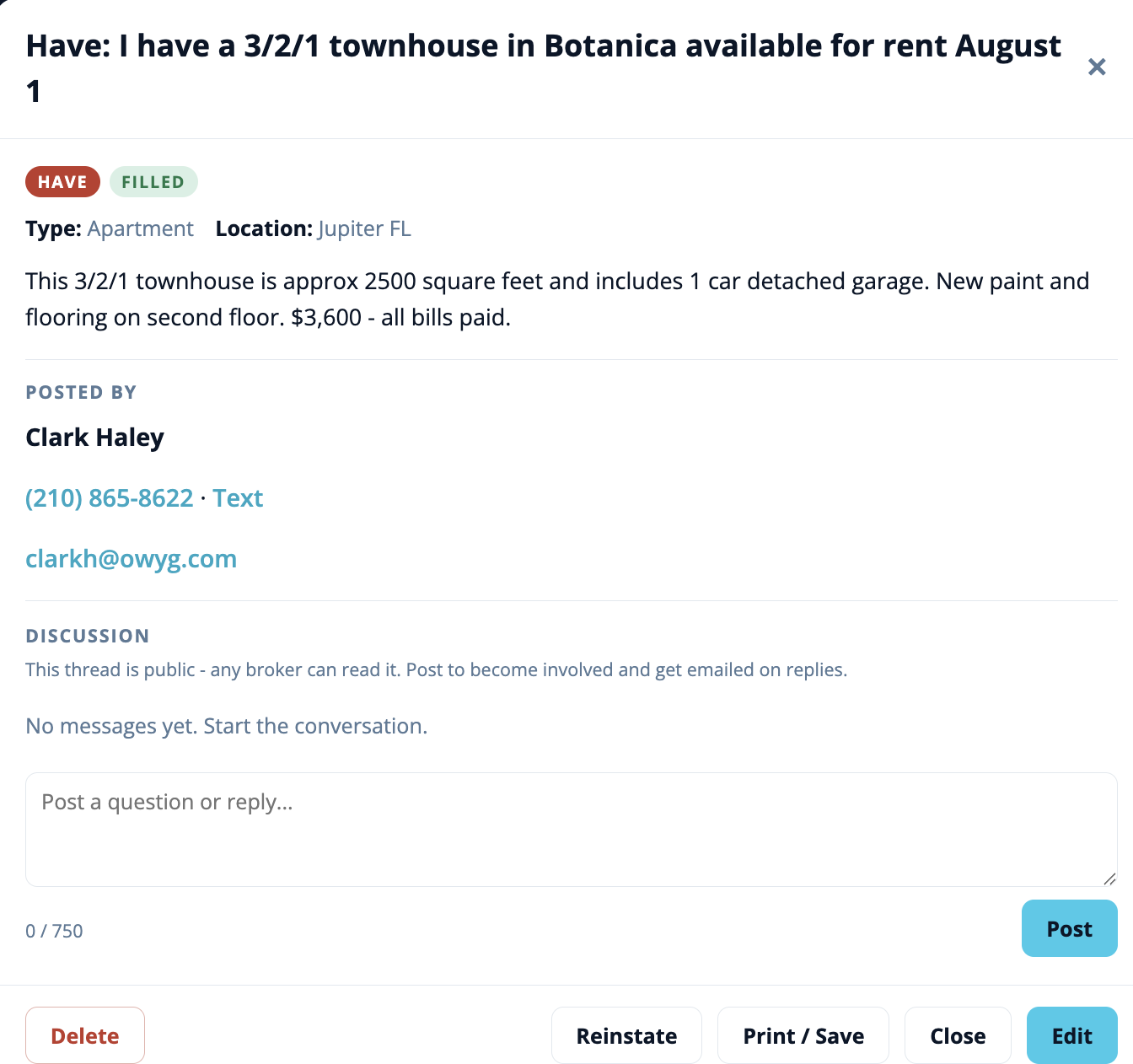
marking a request filled closes it off the active board and gives it a Filled taga filled request with its tag, plus the Reinstate and Delete controls
Print or save a request
Any request can be printed or saved to a clean one-page copy. Use Print / Save on the request detail, or the Print / Save a copy button offered right after you post a new one. It opens a print-friendly layout you can send to paper or save as a PDF.
For administrators
Two things are worth knowing if you administer the network:
The Type list can be tidied. As brokers add their own types, the list can drift. From Predefined Lists in the admin tools you can rename or merge types to keep it clean; existing requests follow the change.
The module ships in admin-preview. Until it is turned on for everyone, only administrators can open Broker Requests (the card reads "coming soon" for other brokers). Flip it live from the Provider Console when you are ready.
Need help?
If something is not working or you are locked out, contact your firm's administrator and they can help.
 Software built by a broker, for brokers